Put your Librari contract data to work in the AI you already use
Connect Librari to Claude, ChatGPT, Gemini, and more. Ask about your contracts in plain English and get cited, trusted answers, without leaving the tools your team lives in.
https://www.thelibrari.com/api/mcp
Auth: OAuth 2.0 • Access: Read, plus archive and unarchive • Copy the URL above, then follow the steps for your tool below.
Pick your tool. Copy the config. Done.
No IT, no migration. Choose your platform below for step-by-step setup.
Claude & Claude Desktop
Free (1 connector), Pro, Max, Team, and Enterprise plans. No API keys, no config files.
- Go to Customize › Connectors.
- Click + then Add custom connector.
- Enter a name (use Librari) and paste the server URL:
https://www.thelibrari.com/api/mcp - Click Add, then sign in to Librari and choose Allow access.
To use it in a chat, click + in the composer, choose Connectors, and toggle Librari on. On Team and Enterprise plans, an Owner adds the connector first via Organization Settings › Connectors, then members connect individually.
ChatGPT
Plus, Pro, Business, Enterprise, or Education plan, on the web. Developer Mode is in beta. On Plus and Pro, custom connectors are read-only, so Librari's search and retrieval tools are available on those plans.
- In ChatGPT, open Settings › Apps & Connectors (labeled Connectors on some accounts) › Advanced and turn on Developer Mode.
- Back in Settings › Apps & Connectors, choose Create (or Add custom connector).
- Paste the server URL as the MCP Server URL:
https://www.thelibrari.com/api/mcp. Set authentication to OAuth, and leave the Client ID and Client Secret fields empty. - ChatGPT sends you to Librari, sign in and choose Allow access.
- In any chat, open the tools menu (+) and turn on Librari.
On Business, Enterprise, or Education: custom connectors are managed by a workspace Owner or Admin on the web. Under Workspace settings › Apps, an admin turns on Developer Mode (enabled per admin), chooses Create, adds Librari with the server URL above and OAuth (leave credentials blank), then Publishes it to the workspace. Members can't add it themselves until an admin publishes it.
If it asks for a Client ID: that only happens when a credential gets typed in by hand. Clear the Client ID and Client Secret fields and connect with the address alone, Librari registers ChatGPT for you.
Gemini (Spark)
Connect once in the Gemini web app; it then works on mobile too.
Who can use it: people with Gemini Spark (included with Google AI Ultra) who are 18 or older, in the US, signed in with a personal Google Account (not work or school), with Keep Activity turned on. English only for now.
- On a computer, go to gemini.google.com.
- Open Settings & help › Connected Apps (it may sit under Personal Intelligence › Connected Apps).
- Under Custom apps for Spark, click Add a custom app.
- Enter the server URL, then click Next:
https://www.thelibrari.com/api/mcp - Sign in to Librari and approve. Librari registers itself automatically, so the Advanced features fields stay empty.
Gemini CLI
For developers using Gemini from the terminal. Add this to ~/.gemini/settings.json (or your project's .gemini/settings.json). The key librari is the connector's name, you can change it if you prefer:
{
  "mcpServers": {
    "librari": {
      "httpUrl": "https://www.thelibrari.com/api/mcp"
    }
  }
}
Restart Gemini CLI and run /mcp to authorize in your browser and confirm the connection.
Cursor
Add this to ~/.cursor/mcp.json (global) or a project's .cursor/mcp.json. The key librari is the connector's name, you can change it if you prefer:
{
  "mcpServers": {
    "librari": {
      "url": "https://www.thelibrari.com/api/mcp"
    }
  }
}
Or in Cursor Settings › Tools & MCP (older versions: Settings › Features › MCP), choose New MCP Server, give it the name Librari, and paste the URL. A green dot means you're connected.
Claude Code
Run this in your terminal (librari is the name you're giving the connector):
claude mcp add --transport http librari https://www.thelibrari.com/api/mcpThen run /mcp inside a session to finish the OAuth sign-in.
Any other MCP client
Point your client at the server URL and authenticate with OAuth 2.0. When asked for a name, use Librari. No API keys needed, signing in is all it takes:
https://www.thelibrari.com/api/mcpLibrari's MCP server exposes tools for searching and retrieving contract data, plus archiving and unarchiving contracts.
Answers in seconds, not folders
Ask across every agreement and get cited, trusted answers.
"What contracts are expiring in the next 60 days?"
Get ahead of every auto-renewal and deadline before it hits.
"Find all agreements with Acme Corp."
Pull every contract tied to a counterparty in one shot.
"What's the notice requirement to terminate our Acme MSA?"
Get the exact clause and timing without opening the PDF.
"Which contracts have an auto-renewal clause?"
Search every agreement by meaning, not just keywords.
"Summarize the key terms of the Acme master services agreement."
See dates, obligations, and financials at a glance.
"What are our payment terms across all active vendor contracts?"
Surface financial commitments hiding across the portfolio.
Answers from everything, no files moved
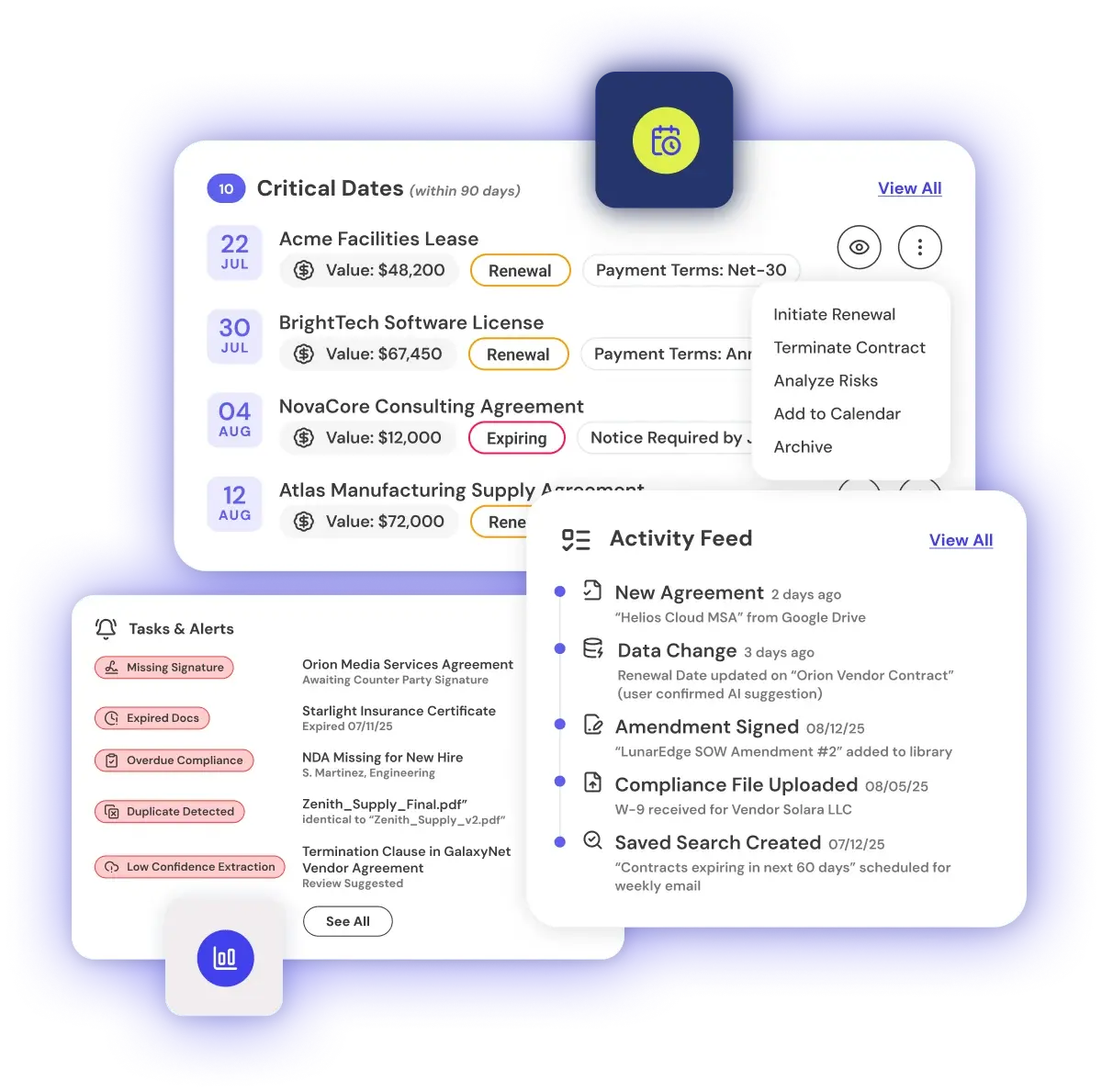
Librari surfaces contracts across the tools you already use, so your AI can answer from your whole library.




Troubleshooting
It's asking for a Client ID or Client Secret
Librari doesn't use those. Leave the fields blank and connect with the address only, signing in is all that's needed.
An authorization error, or it won't finish connecting
Check that your Librari subscription is active. You sign in with that same account, and access is tied to it. For Claude clients, the connection originates from Anthropic's cloud, not your local machine, so firewalls and VPNs shouldn't block it.
Nothing happens after you approve
Make sure the address is exactly https://www.thelibrari.com/api/mcp, with no trailing characters.
The tools don't show up in my conversation
After adding the connector, toggle it on for the specific conversation. In Claude, use + › Connectors. In ChatGPT, use the + button or type /mcp. Menu names shift from time to time, if a label looks different, look for the Connectors (Claude, ChatGPT) or Connected Apps (Gemini) area, the flow is the same.
Still stuck?
Email support@thelibrari.com and our team will help you get connected.
Not a Librari user yet?
Librari finds every contract that runs your business across your drives, email, and e-signature tools, then makes them answerable in the AI you already use.
Connect in 60 seconds and see everything by tomorrow.